FOR TOUCHDESIGNER

Mission control for
TouchDesigner projects.

TDXLU (TDX Launcher Ultra) is a desktop app for everything around your .toe files: control over running sessions, a palette with a favorites Toolbox, git and backup panels, a crash watchdog, the FNSTools store, and a companion TOX that drives a live session from outside. It also launches projects — with the build they were saved in, installed on demand.

  • Free core · 14-day Pro trial
  • Windows & macOS
  • Self-updating
  • Browser demo — no install
A pass through the app on mock projects — previews play on hover, a Patreon component drags straight into the network (TouchDesigner mocked up for the shot). Same UI as the browser demo.

Install it. It already knows your projects.

No setup files, no importing. The Recent tab merges TouchDesigner's own recent list with the launcher's history, so your projects are there on first open.

  1. Install — grab the installer for your platform below
  2. Take the tour — the first-run tour drives the app while it talks, then a short setup wizard covers theme, .toe file association, the companion TOX, and tray behavior. Both rerun anytime from Help
  3. Pick a project — select it to see the TD build it was saved with (read from the file itself, via Derivative's toeexpand)
  4. Missing that build? TDXLU offers the matching Derivative download and runs the installer for you
  5. Launch — or just double-click .toe files in your file manager once the association is set

The tabs

  • RecentMerged TD + launcher recents; version panel, tags, per-project README, media browser
  • CurrentTouchDesigner sessions running right now — including ones opened outside the launcher
  • TemplatesStarter .toe files, reorderable, with a default TD version for the whole tab
  • PaletteDerivative palette + custom folders, with a pinned favorites Toolbox on top; drag straight into TD
  • PatreonBrowse .tox components from creators you back or merely follow, and load one into a running session
Companion TOX

Drive the running session from the launcher

A small .tox that lives in your project and listens on a TCP bus. With it in place, the launcher can save the project remotely, capture thumbnails and preview clips, load components into the network editor, and consolidate external media — while TD keeps running. Fully self-contained: detected and driven over its own connection, nothing else to install.

Point Edit → Preferences → General at a startup .toe with the TOX in it and everything you build from scratch has it. TouchDesigner loads that file when it launches, so projects that already exist still need it dragged in once each — the Companion bar walks you through both.

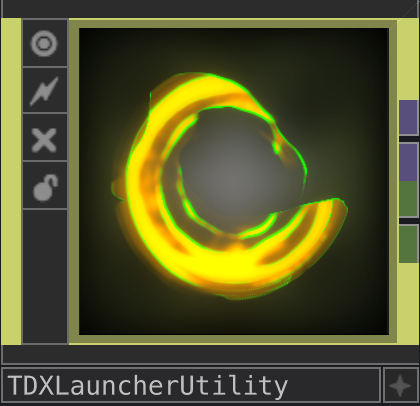
The TDXLauncherUtility component as it appears in a TouchDesigner network
This node in your project's root network is the whole install. Bundled with the installer — one click in the setup wizard puts it in your palette.
QUICK LAUNCH

Three letters from anywhere.

Press the global hotkey — TD fullscreen included — and a small search box appears over whatever you're doing. Type a few letters, hit Enter: projects launch with the right build, running sessions focus, components place into the live session — or drag the row straight into a TouchDesigner network.

  • >verb-first commands per session — Focus, Save, Snapshot, Relaunch, Kill. Destructive ones arm on the first Enter and fire on the second, never on one keypress.
  • ?tool commands — actions the components inside a running project publish for themselves. Type the arguments inline: ? rec 2 and it's already recording.
  • =components only — your whole .tox library in one list.
  • /browse a palette folder, Toolbox category or your Patreon cache.
  • #filter by project tag — running sessions keep their tags, so a live show still surfaces.

Whatever you ran last is one Alt+↑ away — the palette keeps a history of executed queries, so the second time is muscle memory.

Recreated for this page — the real overlay is one click away in the browser demo.

What's in TDX Launcher Ultra.

The full list, not the highlights. Everything here is in the free download and works forever — except the items marked Pro, which need a Patreon membership or a licence key (or the 14-day trial). See the split →

Launching

Find the project, get the build it needs, go.

Merged recentsTD's own recent list and the launcher's history in one place — nothing to import.
Build detectionReads the exact TD build a .toe was saved with, straight from the file.
Version installIf the required build isn't installed, offers the matching Derivative download and runs the installer.
Gallery & list viewsIcon/hero grid by default — tiles with a preview clip play it on hover. Classic list one toggle away.
TemplatesStarter .toe files, reorderable, with a default TD version for the whole tab.
.toe associationDouble-click a project in your file manager and it routes through the launcher — with a countdown any key cancels.
Missing-build fallbackA double-clicked project whose exact build you don't have doesn't dead-end: choose once — latest, closest, a build you pin, or always ask — and it's remembered.

Quick launch

A hotkey palette over everything — TD fullscreen included. Try it in the browser demo →

Summon anywhereThe main global hotkey raises the launcher window from anywhere; a second opens this small search box over whatever you're doing — type a few letters, hit Enter. A third raises the main window on the Palette tab; bind whichever combos you want, each on or off on its own.
Everything in one listProjects launch with the right build, running sessions focus, palette / Toolbox / Patreon components place into the live session, templates start new projects.
Commands> shows verb-first commands per session — Focus, Save, Snapshot, Relaunch, Kill, plus a new project from your default template. Destructive ones always ask for a second Enter.
?
Tool commandsComponents in a running project publish their own actions — ? lists them. Arguments render as chips and can be typed inline (? rec 2) or filled through a short prompt. Same command in several sessions? One row with a count, run against the session you were just in.
Query historyExecuted queries are remembered and cycle with Alt+↑ / Alt+↓, shell style — the thing you run before every show is two keystrokes away.
§
Field filters/folder browses a palette folder, Toolbox category or your Patreon cache, grouped under headers; #tag filters by project tag — mixed freely with search words.
Drag outAny .tox row drags straight into a TouchDesigner network — the palette waits for the drop, then gets out of the way.

Phone Remote

Run the show from your pocket — FOH without leaving the floor. Try it in the browser demo →

One-tap pairingTap 📱, scan a QR, done — LAN access flips on and the remote opens on your phone (same Wi-Fi). Add it to the home screen; the pairing survives restarts.
Sessions as tabsEvery session — live or ended — is a tab: facts, heartbeat status, live perf readout, and Focus / Save / Snapshot / Record / Relaunch / Kill. Ended sessions relaunch with one tap.
Hold-to-confirmKill and Relaunch arm on press-and-hold with a filling bar and a haptic buzz — release early to cancel. Nothing destructive fires from a stray tap.
Live parametersThe companion's exposed controls, with their parameter pages as tabs, pinned favourites, nudge steppers and search. Expose more COMPs from the phone via a lazy network-tree browser.
Multi-touch surfaceEvery finger as CHOP channels — x, y, force and active per slot, plus touch count and a connected-phone table — comes from FNS_Remote, which serves the phone from inside TouchDesigner. Several phones at once, and it runs with the launcher closed.
🔒
Client linkA second pairing code for clients and operators: only the controls you authored — no session actions, no launching, no browsing. Enforced by the server, not hidden in the page.
Yours to runStart, stop, change the port (rebinds live), or regenerate the pairing codes to cut off every shared link — all from Settings.

Projects & metadata

Everything the launcher knows lives next to the .toe — no database.

Project versionsName.2.toe increments, Backup/ saves and crash autosaves fold into one card. A versions drawer launches any copy, restores one as the head (the old head is preserved, never overwritten), or prunes to the recycle bin.
#
TagsHierarchical with / (e.g. show/live); filter and edit from the toolbar.
Per-project READMEShown and edited in-app — notes travel with the project.
Project mediaAuto-scans a media folder beside the .toe; fullscreen browse, videos stream on hover.
Sidecar metadataOne {stem}.tdxlu.json per project — title, description, tags, hero image. Plain JSON, yours to edit — or author it from inside TD on the companion's Media page, hero capture included.

Running sessions

The Current tab is a session inspector, not a launcher.

Session discoveryFinds every running TD process — including projects opened outside the launcher. Shows version, PID, uptime.
Session controlFocus the TD window, reveal the .toe, relaunch with a different version, or kill the process.
Heartbeat watchdog ProTray watchdog on TCP pulses from the companion; multi-project, SMTP alerts on stall or relaunch.
Displays & GPU ProMulti-GPU machines: bind a project's TD process to one card at launch, and place its windows on the right displays through the companion. Both saved with the project.
Tray & loginClose-to-tray, quit-after-launch, start at login (minimized to the tray) — all Settings toggles.

Companion actions

What the companion TOX unlocks on a selected running session — plus whatever your installed FNSTools packages add to it.

Save, snapshot, recordSave the .toe in place; capture a thumbnail or a preview clip (up to 30s) — the gallery picks them up automatically.
Autosave, via FNS_AutosaveTouchDesigner has none — the free FNSTools package FNS_Autosave adds one. Arm a timer inside the session, pick whether a save follows your increment/backup preferences or overwrites the open .toe, and skip saves when nothing changed or while you're in Perform Mode. Install it and it appears in the session view; it also runs with the launcher closed.
Collect, via FNS_CollectScan for external media refs, copy them into the project, relink relative — dry-run checklist first, per-file opt-out, expression refs frozen to constant paths (or not, your call). An FNSTools package: install FNS_Collect and it appears in the session view. Works standalone inside TD, no launcher needed.
Media browser, via FNS_MediaBrowserEvery movie, image, audio and geometry file the running project references — live preview, file facts (resolution, duration, fps, audio), Replace on any reference, Locate missing to batch-relink a moved folder, an Unused scan for dead weight, and timeline sync to a clip. An FNSTools package (FNS_MediaBrowser) with its own panel inside TD.
Load componentsSend a .tox into the network editor — from a local file, any URL, a GitHub release, or a package index.
Python envPackage installs go through uv into the project's .venv; Ensure env sets one up via TDPyEnvManager.
In-place utility updatesWhen a session runs an older companion, one click updates it live — parameter values survive the reload.
λ
Embody / Envoy awareProjects built with the optional Embody/Envoy toolkit get an MCP panel — bridge status, .mcp.json, port — and a last-resort transport for companion actions. Never required.

Palette & Toolbox

Your components, one drag from any network.

Palette browserDocuments/Derivative/Palette plus any custom folders — drag a .tox straight into a TD network.
Toolbox ProA pinned favorites shelf in categories you define. Lives in the launcher config, so it's the same set no matter which folders are scanned.
Tools from anywhere ProPin local paths, direct URLs, or owner/repo GitHub releases — ⟳ re-fetches, so a GitHub tool tracks its latest release. Package specs too.
Load into sessionA target bar names the running session with the companion — send any .tox into its network editor without dragging.
Drop to pin ProDrop a .tox from Explorer or the palette tree onto the Toolbox — onto a category row to pin it there.

FNSTools

The FNSTools toolkit, browsable and installable without leaving the launcher — and where the launcher’s optional capabilities come from. About the toolkit →

Launcher capabilitiesSome packages announce their commands to the running session, and the launcher renders them right in the Current view and its context menu — FNS_Autosave (free), FNS_Collect, FNS_MediaBrowser and FNS_Remote bring autosave, collect, the media browser and phone touch. Each is a complete TouchDesigner tool in its own right: it works with the launcher closed, and lights up the session view when both are installed.
The storeThe current release by category, with descriptions, versions and docs links. What a session already has is pre-checked, with installed and 1.1.0 → 1.2.0 badges.
Install without TouchDesignerTick tools and stock them locally — verified downloads, no session needed. Or install straight into a running project over the companion bus, bootstrap included if the project has no toolkit yet.
The selection is the tool setInstalling makes the project match what you ticked, so unticking removes. The confirm step lists the adds and the removals before anything happens.
Global configuratorEvery tool's settings, edited from the launcher — with real menus, ranges and validation when a session is live, or straight into the config file when nothing is running.
Palette shelfEvery package also appears as a standalone component beside the Toolbox — drag one into a network, or place it into a session.

Palette tabs inside TouchDesigner

The launcher's Palette, Patreon and Commands tabs, live inside TD's Palette Browser.

Web panel in the Palette BrowserWith the companion (v0.21.0+) loaded, TouchDesigner's Palette Browser gains TDXLU and Patreon tabs next to the stock palette — served by the launcher on localhost, token-gated, the Patreon cookie never leaves the launcher.
TDXLU tab: Toolbox and FNS shelfYour pinned tools and the FNSTools packages, browsable and drag-ready in one place — same as the desktop Palette tab, but narrower for the dialog.
?
Commands sub-tabEvery command your tools announced to FNS_CommandRegistry — the same list the quick-launch ? prefix shows, with inline argument prompts, run straight in that session.
Click to placeEvery component row has a ↳ button that places it straight into the session's network editor — no drag needed (the panel is a texture). Same load_tox path the desktop Palette tab uses.
Pin selected COMP ProSelect a COMP in the network editor and click Pin selected COMP: it's saved as a .tox into your TouchDesigner palette's TDXLU Toolbox folder and pinned as a Toolbox tool. Never overwrites the same file twice.
Session barSave, Snapshot and Record buttons, plus an Autosave chip once FNS_Autosave is installed — and an optional health line (fps · cook ms · drops · GPU) when the launcher's Performance monitor is on.
Session sub-tabThe session’s tools in a list with live summaries: Git Pro (branch, changes, commit), Backup Pro (what would copy, back up now), Phone Remote (QR code, one-click on, expose COMPs) and Windows (focus, minimize, restore, manage layout). Each opens full-height with a back crumb.
Command favouritesPin commands from the quick-launch, Settings, or the Commands tab; favourites sort first everywhere and travel with settings export/import.

Git & backup Pro

Side panels for keeping projects safe — versioned or copied.

Git panelChanges and history, diffs, stage/commit, branch, pull/push — GitHub PAT in Settings. Creating a repo seeds a TouchDesigner .gitignore, so Backup/, increments and crash autosaves stay out of the first commit.
Backup panelProject folder ↔ USB or synced folder; include/exclude globs and a max file size; backup, restore, sync — no deletes, ever.
Direct cloudConnect Google Drive, Dropbox, OneDrive, or Box: a one-time rclone download, sign in via your browser, then it's a backup destination.

Getting oriented

The app explains itself, then gets out of the way.

First-run tourA spotlight walkthrough that drives the app as it talks — switching tabs, narrating what lives where. Replay from the header anytime.
First-encounter tipsThe first time you open a tab or panel, a small non-blocking bubble explains it. Once each, ever.
Setup wizardTheme, view mode, .toe association, companion install, tray behavior — right after the tour, rerunnable from Help.
Self-updatingA quiet check at startup plus About → Check for updates; an available update offers Install & Relaunch. Skip a version to dismiss it for good, or turn the startup check off — Settings lists what you skipped.
Settings, pagedTen categories in a sidebar and a search box that finds a setting by the name of its control — every "open Settings" button lands on the section it means.
Rebindable keysLaunching the startup file, the view toggles, folder reveal and the README keys are yours to change — each with Reset, plus Reset all to defaults.

Free core. Pro when you need it.

The launcher is free forever — projects, versions, launching, palette, quick launcher and running-session control, no account required. Pro adds the parts that talk to the outside world: remote control, remote components, version control, backup and the watchdog.

Patreon — any paid tier unlocks Pro and includes updates while you're a member. Cancel anytime — the version on your machine keeps working, and you drop back to the free tier, never to a locked app.
Licence key — pay once; lifetime updates, up to three computers per key.
You only need to be online again to install updates or set up a new computer.

Not sure yet? Run the whole thing free — no account needed.
Click through the UI in your browser, or install it and start a 14-day Pro trial from the app.
Free
The launcher, forever.

No account, no key, no expiry. Everything you need to open the right project in the right build.

  • Launching — merged recents, build detection, on-demand TD version install, templates, .toe association
  • Project gallery — versions drawer, tags, README, project media, sidecar metadata
  • Quick launcher — global hotkey palette over everything, with commands, tool commands, field filters and query history
  • Palette browser — your local .tox folders, drag straight into a network
  • Running sessions — discovery, focus, reveal, relaunch, kill
  • Companion basics — save, snapshot, record preview, and in-place utility updates
  • Phone & browser control — pair by QR, every session a tab, live parameters, hold-to-confirm, client link
  • Windows & performance — a switcher across every TD window, and a live per-session readout
  • Live loading — send a .tox, a URL or a package into a running network, project Python env handled
  • FNSTools — the toolkit store, installer and global settings editor
  • Launcher capabilities — whatever your FNSTools packages advertise, rendered in the session view: autosave (free), collect, media browser, phone touch
  • Envoy MCP panel — for projects carrying the optional Embody/Envoy toolkit
Download free →

Windows & macOS · self-updating · no telemetry.

Pro
Everything in Free, plus reach.

For shows and studios: pull components from anywhere, keep the work safe, and watch the rig while it runs.

  • Toolbox — pinned favourites from local paths, URLs and GitHub releases
  • Patreon import — browse creators you back or follow, and load their components
  • Git panel — diffs, stage/commit, branches, pull/push
  • Backup — USB or synced folder, plus direct Google Drive / Dropbox / OneDrive / Box
  • Heartbeat watchdog — crash detection, auto-relaunch, SMTP alerts
  • Displays & GPU — bind a project to one graphics card, place its windows on the right displays
Unlock with Patreon →

Or start a 14-day Pro trial from inside the app — no account, no card.

Download and launch.

Grab the installer for your platform. The core is free forever — no account, no licence key. Pro features start a 14-day trial on request, or unlock with Patreon / a licence key.

Want to look around first? The browser demo is the real TDXLU UI running on mock data — click through every tab, panel, and dialog. Nothing to install, nothing touches your machine.
Windows

Installer

Signed updater builds as .msi / .exe — install, done. Windows 10 and up.

Download for Windows →
macOS

Disk image

A .dmg for Apple Silicon. Builds aren't notarized yet, so clear the quarantine flag once after copying to Applications:

xattr -cr "/Applications/TDX Launcher Ultra.app"
Launches and in-app updates are unaffected after that.

Download for macOS →

After that, it keeps itself current: installed copies check quietly at startup and offer Install & Relaunch when there's something new — you shouldn't need this page twice. Skip a release you don't want, or switch the startup check off entirely.

Launch something.

Install it and take the thirty-second tour — launching is just the front door. The sessions, the Toolbox, the git and backup panels, and the companion are why it stays in the tray.